 Aurora
ArtLab: weights, combinations & rarity
Set relative trait weights, understand linked choices and optional layers, and compare your targets with the collection that can actually be rendered.
On this page
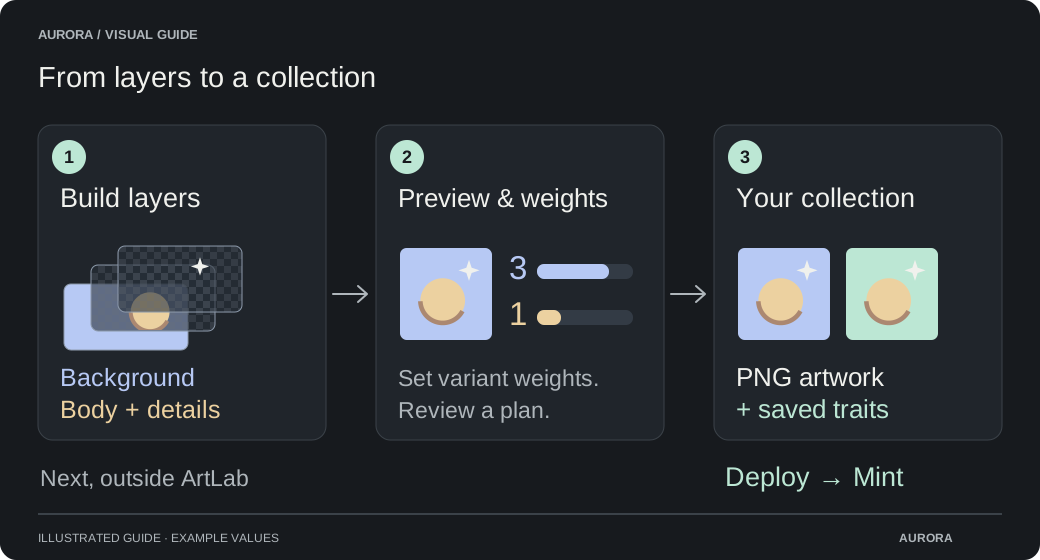
Use weights to influence which artwork is chosen
Every variant has a Weight. A larger weight makes that choice more likely relative to the other eligible choices in the same layer. The number is not a promised quantity: weight 10 does not mean “render ten copies.”
Weights are whole numbers from 0 to 10,000. Set 0 to exclude a variant from collection planning without deleting its uploaded artwork. Manual preview selections help you inspect images; they do not set the collection’s distribution.
Start with a few clear ratios, review a collection plan, then adjust. ArtLab must also obey your links and produce unique results, so final counts can differ from the percentages beside your weights.
Calculate a layer’s starting selection chances
For one eligible choice, divide its weight by the total weight of the eligible variants plus the optional skip weight. Multiply by 100 to show the result as a percentage. This describes the starting choice pool; it is not an exact quota for a finite collection.
Choice chance = choice weight ÷ (eligible variant weights + skip weight)
Percentage = choice chance × 100| Background variant | Weight | Calculation | Starting chance |
|---|---|---|---|
| Blue | 70 | 70 ÷ (70 + 20 + 10) | 70% |
| Red | 20 | 20 ÷ (70 + 20 + 10) | 20% |
| Gold | 10 | 10 ÷ (70 + 20 + 10) | 10% |
Include “no image” as a weighted choice
Skip this layer · weight adds an empty choice to that layer’s pool. A skipped layer draws no image and adds no metadata trait. Weight 0 means there is no optional skip when the layer’s links match.
For a Hat layer with Cap weight 3, Crown weight 1 and skip weight 1, the total weight is 5:
| Choice | Weight | Starting chance | Result |
|---|---|---|---|
| Cap | 3 | 3 ÷ 5 = 60% | Draw the cap; include Hat: Cap if traits are enabled. |
| Crown | 1 | 1 ÷ 5 = 20% | Draw the crown; include Hat: Crown if traits are enabled. |
| Skip layer | 1 | 1 ÷ 5 = 20% | No hat image and no Hat trait. |
Links change the pool for each combination
A linked variant competes only when its conditions match. If a Shirt layer contains Ivory shirt weight 1 and Gold shirt weight 9, but each shirt is linked only to its matching body, Gold shirt is not nine times more common overall. Whenever an Ivory body is chosen, only Ivory shirt is available; whenever a Gold body is chosen, only Gold shirt is available. The body choices determine their opportunities.
The editor’s percentages use the layer’s listed positive weights and skip weight. They are useful for comparing settings, but they are not a calculation of overall collection frequency after links. A linked design labels these values relative weight or Weight. Use the collection plan to see the resulting counts.
Without links, a complete combination’s initial chance is the product of its per-layer chances. With links, use the eligible pool at each choice. Incompatible paths are excluded. Once a selection from the layers counted toward uniqueness has been used, other full combinations that differ only in excluded layers are unavailable too. These starting calculations therefore do not remain fixed throughout a render plan. Excluded layers still follow their weights and links when the full composition is chosen.
Build matching layer and variant links
| Example setting | Starting calculation | Meaning |
|---|---|---|
| Body: Ivory 80, Gold 20 | Gold starts at 20 ÷ 100 = 20%. | These are the base body choices. |
| Crown layer requires Body → Gold | Ivory forces the Crown layer to skip. | A crown is possible only on Gold bodies. |
| Crown variant weight 1; skip weight 3 | On an eligible Gold body: 1 ÷ 4 = 25%. | The crown competes with its optional skip. |
| One first draw, with every branch valid | 20% × 25% = 5%. | An illustrative initial chance of a crowned result, not a promise that 5% of the final collection will wear crowns. |
Check how many unique combinations are available
For independent layers, multiply the number of enabled choices in each layer to count full selections. For uniqueness, multiply only the choices in layers where Count toward uniqueness is on. With all layers counted, two backgrounds × three bodies × four hats give 24 selections. A positive skip weight adds one choice to its counted layer: making those hats optional gives two × three × five = 30.
Weight 0 removes a variant from these choices. Increasing a positive weight changes its preference, but does not create additional combinations. Adding a distinct variant or optional skip to a counted layer can create more uniqueness choices. Adding backgrounds to an excluded Background layer does not increase that capacity.
The uniqueness count shown before link rules is an upper bound. Some combinations are incompatible, and a layer that is automatically skipped has only that one absent result on that path. Create collection plan checks for enough compatible combinations; it may report that the requested number cannot be planned.
Full selections = product of enabled choices across all layers
Uniqueness selections = product of enabled choices across counted layers

10 backgrounds × 5 bodies × 4 eyes = 200 full selections
Background not counted: 5 bodies × 4 eyes = 20 uniqueness selectionsWorked example: using every combination overrides the proportions
Imagine two required layers with no links and Count toward uniqueness enabled on both: Background has Blue weight 9 and Red weight 1; Hat has Cap weight 9 and Crown weight 1. There are only four combinations. If you request all four, the collection must contain each of them once:
To give weights more room to influence a larger collection, provide substantially more compatible combinations than the number of artworks you intend to render. Adding visually identical options will not help, because final images are also checked for duplicates.
| Artwork | Background | Hat |
|---|---|---|
| One combination | Blue | Cap |
| One combination | Blue | Crown |
| One combination | Red | Cap |
| One combination | Red | Crown |
Different choices must also produce different final images
Unique combinations and unique pictures are separate checks. Two different source files may contain identical pixels. A body can hide a background, or an opaque top layer can hide every choice beneath it. Those combinations differ in the plan but may render the same picture.
Before saving each result, ArtLab checks both the composite of counted layers on a transparent canvas and the full final image against earlier results in the same job. If either is identical, it tries an unused compatible combination and updates its chosen traits and layer counts. Differences in file metadata or invisible color underneath fully transparent pixels do not make a picture unique.
The checks use exact pixels, not perceptual or AI similarity. They apply within the render job, including after a resume, and do not compare separate jobs or collections. Include in traits does not control either check: artwork-only layers count toward character uniqueness while Count toward uniqueness is enabled, and all rendered layers affect the final-image check.
If the available artwork cannot supply enough distinct results, or too many replacement attempts are needed, rendering pauses with an explanation. The combinations shown in the editor therefore cannot guarantee the final number of unique pictures.
Compare weights with the plan and final results
Render a new collection or re-render eligible artwork
Review rarity
Check your artwork count, enabled variants, optional skips, links and which layers count toward uniqueness. The review shows target percentages for an independent design, or relative weights when links are present.
Create collection plan
ArtLab selects compatible unique combinations before rendering the full collection. Review the sample compositions and expand each layer under Layer counts in this plan.
Compare Planned and Count
Planned shows that choice’s percentage of the whole planned collection; Count shows the number of planned artworks using it. A skipped layer can appear as By links / weight because both mechanisms may cause its absence.
Adjust before rendering
Use Back to editor to change weights, links, artwork or Count toward uniqueness, save the changes, then create a new plan. A new plan can produce different counts. Exact per-trait quotas are not a setting in ArtLab.
Check Final layer counts
After rendering completes, this section shows the selection counts actually saved by the render. Duplicate-image replacements can change the counts from the original plan. Artwork-only layers show composition counts without adding traits.
ArtLab weights are different from rarity ranks
Weights guide how artwork is generated. Rarity ranks compare the traits in an actual collection after those choices have been made. A variant with weight 1 is not automatically Rank 1, and a low weight cannot guarantee a rare final result.
Before minting, your creator workspace can preview OpenRarity from all saved artwork traits, counting each artwork once. Deployment or an eligible re-render does not remove this preview while the selected contract has no known mint history on that network. Published ERC-721 rankings use OpenRarity; ERC-1155 editions use AuroraRarity with confirmed minted copy counts. Those published ranks can differ from the equal-weight artwork preview. The dedicated rarity guide explains both formulas and the data each calculation uses.
A skipped trait can affect the resulting trait pattern and trait count. A layer marked Artwork only adds no trait, so its composition weight does not directly contribute to trait rankings. Count toward uniqueness is a separate generation rule: excluding Background there does not remove a saved Background trait from rarity calculations. Rarity describes recorded scarcity; it is not a promise of desirability or value.
OpenRarity and AuroraRarity formulas