 Aurora
Mint an NFT from a creator
Read a mint page, check your phase eligibility and review the total before confirming.
On this page
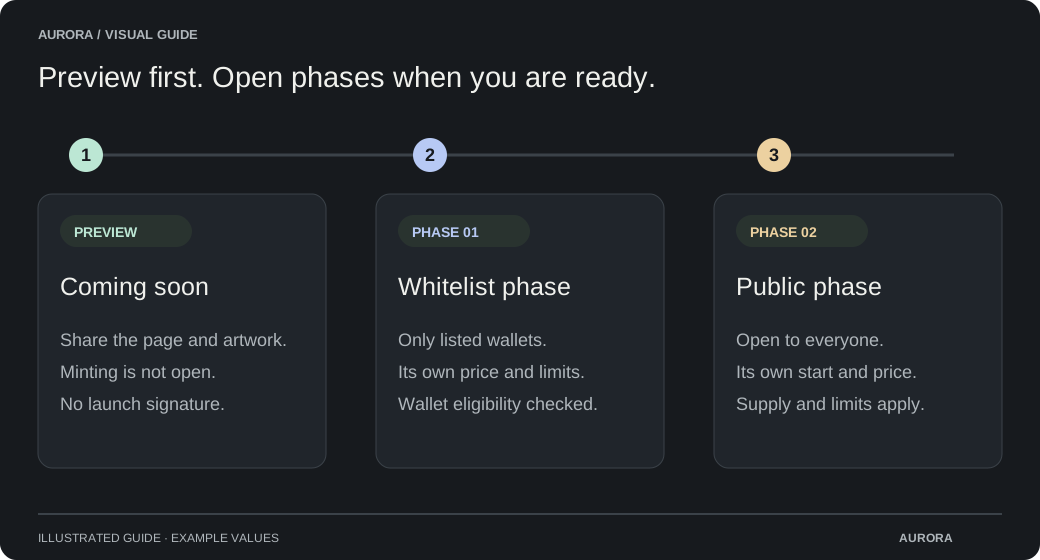
Read the mint page first
Check the creator’s description, collection address, network and community links. Read the supply and phase schedule. An additional mint adds NFTs to an existing collection; its previous supply is shown separately. A featured listing is not a promise of safety or value.
Browse featured mints and countdowns
Featured mints appear in a single scrolling row: two banners on larger screens and one on mobile. Use the previous and next controls, swipe or scroll horizontally, or pause and play the automatic rotation.
A scheduled mint shows its starts-in countdown in the banner’s status position. Mint phases show their own starts-in or ends-in countdowns. The phase schedule and current eligibility still determine whether you can mint.
A phase marked Sold out has used its allocation, even if its scheduled end time has not passed. The page shows its minted count and highlights the next available phase with its opening time, countdown and current available supply. This is different from reaching your personal wallet limit. Upcoming supply is capped by the NFTs still available in the release and can change before that phase opens. Quantity and security-check controls appear when the selected phase is live.
Complete your mint
Choose a phase and connect your wallet
Use Connect wallet beside the mint controls. For a whitelist phase, connect the listed address to check your allowance and any personal price.
Choose the quantity
Enter the quantity, or use Max once your remaining allowance is available. Edition quantities count copies. A slow Max lookup does not stop you from choosing a quantity and continuing to Review mint. Complete CAPTCHA if the mint requires it.
Review the quote
Review mint checks your chosen quantity, current allowance, personal price and available supply before opening the confirmation. Check the mint price, platform fee, quantity, network and receiving wallet. The wallet also shows network gas. A zero artwork price can still have a platform fee and gas.
Confirm in your wallet
Approve only after checking the transaction. Aurora then checks confirmation automatically; those checks do not need another signature or gas payment.
The red Aurora verification badge
A blue star beside a collection name means it is verified by Aurora. Administrators manage verification per contract and network, including all releases from that contract.
Aurora verification is separate from OpenSea verification and from source-code verification on a blockchain explorer. Creators cannot add it through collection names or artwork. Always check the collection address and network before minting. The badge is not a guarantee of future project performance.
Understand the platform-fee preview
The page shows an approximate dollar fee and its native-token equivalent per NFT. Conversion rates are refreshed in the background and cached, so you do not need to request a new price each time you view the page. The review quote shows the fee for your selected quantity.
Display values may be rounded. Review the current quote before confirming, and request a new review if it expires. If a required fee conversion is unavailable, wait for pricing to recover; a free artwork price does not remove a platform fee.
After the transaction
A successful transaction records the NFT or edition copies on the chosen network. Artwork may remain a placeholder until the creator reveals it. Transfers can stay locked if the creator has chosen to enable trading later.
If a transaction is pending, check Transaction details and your wallet activity. Do not send another mint just because the page is still confirming.