 Aurora
ArtLab · preview, render & re-render
Render a collection, correct its layer order while keeping every artwork’s traits, or replace eligible artwork with a new plan.
On this page
Check the artwork before making a plan
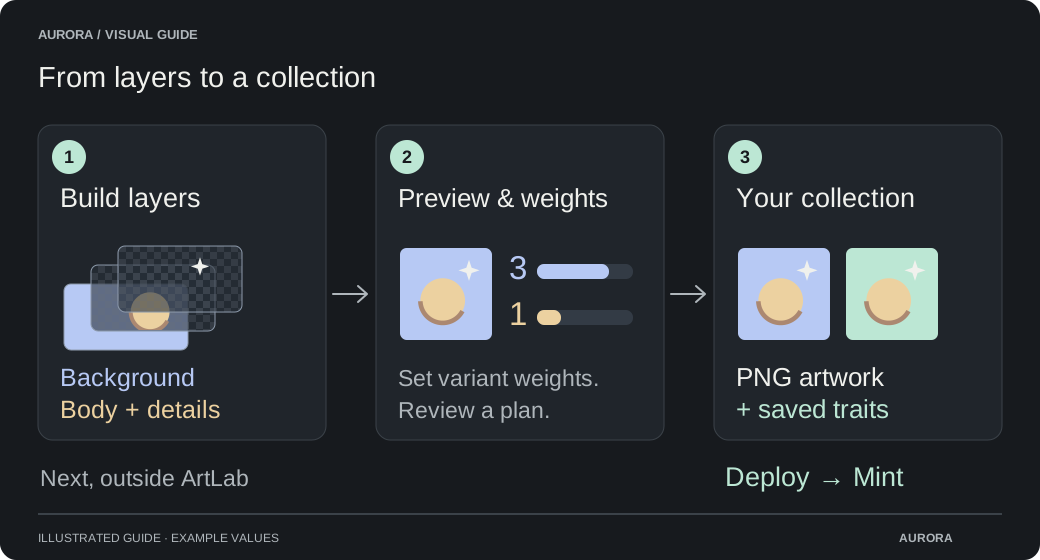
Finish the layers, links, names, weights and Count toward uniqueness settings, then choose Review rarity. Preview & rarity brings the intended collection size, combination count, trait layers and destination together before you generate the artwork.
Understand weights and unique combinations
Inspect important combinations
Use the layer selectors in Live preview to check alignment, clothing, details and linked variants. Shuffle in the editor or choose Another combination in Preview & rarity to inspect more possibilities. A preview that cannot satisfy the links shows an explanation instead of an invalid image.
Check the server composition
Choose Render preview, then Open rendered preview to inspect the server-rendered composition. This preview is capped at 512 × 512 pixels; it is useful for alignment, transparency and clipping, not for judging full-resolution detail. Render a small test collection at your chosen canvas size and open its actual artwork to inspect fine detail before generating the whole collection.
Check the traits as well as the image
The preview lists the selected metadata traits. Layer names become trait types and variant names become their values. Layers marked Artwork only still appear in the image, but do not create a trait. Skipped layers add neither an image nor a trait.
Review the requested size
The uniqueness count describes choices in layers where Count toward uniqueness is on. Excluded backgrounds or decoration do not multiply that count. With links, it is an upper bound before compatibility rules. Even compatible choices can make identical pixels, so rendering also checks the counted-layer composite and the complete final image.
Choose the collection that will receive the artwork
Under Render destination, choose New collection or Re-render existing collection. You can choose the destination before planning and review it again while the job is still a plan. Selecting an existing collection or creating a plan does not delete its artwork.
| Destination | What to do | What happens when rendering starts |
|---|---|---|
| New collection | Enter a Rendered collection name that is not already in use in your profile. | ArtLab creates a private collection and saves the generated artwork into it. |
| Re-render existing collection | Select an Existing collection. Use Refresh to update its artwork count and availability. | After a separate confirmation, ArtLab replaces eligible artwork while retaining the collection itself. |
| A collection with the same name already exists | Choose Use this collection to review it as an existing destination, or enter a different name for a new collection. | A matching name never silently replaces the existing collection’s artwork. |
Create and review the saved collection plan
A render can contain up to 25,000 artworks, subject to available collection and profile capacity. Artwork already saved, places reserved for mints and remaining output from other unfinished ArtLab renders also use capacity. A paused job still reserves space for its remaining output.
Choose Create collection plan
ArtLab saves the current project and selects compatible combinations without repeating the selection of variants and skips in layers counted toward uniqueness. Choices that differ only in excluded layers cannot produce another planned character. Keep at least one counted layer; if there are too few compatible choices, change the layers, links, uniqueness settings or collection size.
Review Your collection plan
Inspect Planned artwork preview and expand Layer counts in this plan. Compare each variant’s Weight or Target with its planned count and percentage. With links, a weight is relative to the compatible choices for a combination, not a promised percentage of the whole collection. Artwork-only layers are labeled as composition counts because their names and values will not appear in metadata.
Adjust before starting
Choose Back to editor if the composition, distribution or uniqueness settings need work. Save changes and make a new plan; Resume render keeps the existing plan’s settings. Weights guide selection without promising exact counts. During rendering, a duplicate counted-layer composite or final image is replaced with other compatible choices, so planned counts may change.
Start the first collection
For New collection, confirm its name and choose Render followed by the artwork count. For an existing collection, choose Review re-render and read the replacement confirmation described below.
Fix layer order without changing the collection’s traits
Use Fix layer order when an existing ArtLab collection has the right characters and traits, but a layer is drawn in front of something it should sit behind. For example, you can move Hair behind Hat while keeping each artwork’s exact hair, hat, body and background choices. This redraw uses the saved choices for each artwork; it does not generate a new collection plan.
The artwork keeps its image ID, collection position, title, description and saved traits, including metadata edits made after rendering. Artwork-only layers and skipped layers also keep their original choices. Trait counts and trait-based rarity therefore stay the same. Only the order in which the saved layers are drawn changes.
You can fix layer order while a mint continues. Aurora keeps the committed originals separately while showing corrected drafts to you. Buyers keep minting the original inventory, public galleries and mint shares show the published version, and a delayed reveal still uses its exact committed files. Retained originals and corrected drafts both count toward storage and survive restarts. Repeated corrections replace the draft without adding another committed copy.
Changing the stack can hide differences that made two artworks unique. If corrected images become exact duplicates, the redraw pauses rather than choosing new variants. Open Fix layer order again, choose a different stack or restore the original order, and confirm a new correction. ArtLab redraws all of the same artworks so the completed collection uses one consistent order. Other project settings and project deletion remain locked until the correction finishes, including while it is paused.
How layers draw from back to front
Troubleshoot a layer-order correction
Edit and publish artwork metadata
Open the original ArtLab project
Choose Fix layer order for the rendered collection. ArtLab first checks the saved artwork and shows its progress. You can close this check and reopen it later to continue; checking does not change any images. Keep the original layer files and saved render information: trait names alone cannot recover artwork-only layers, skips or exact image selections.
Arrange the saved layers
Move the affected layer earlier to draw it behind the others, or later to draw it on top. The first layer is the back of the image. This correction uses the rendered artwork’s saved design, so unrelated changes to the project’s weights, links, trait names or source images are not applied.
Review the same artworks in the new order
Enter any Saved artwork number from the collection and choose Preview artwork before starting. Check overlapping details such as hair, hats, clothing and accessories across several characters. Their previews keep the original variant choices, letting you inspect the corrected composition without rerolling traits.
Redraw the collection
Choose Redraw followed by the artwork count to confirm. ArtLab updates each existing image after its replacement has been rendered and saved successfully. It keeps the previous image until that individual save succeeds, rather than clearing the collection first. You can pause and resume the same redraw; a partial run can show a mix of corrected and original images until it finishes. Complete that correction before returning to project editing.
Publish eligible NFT artwork changes separately
Corrections to committed artwork are saved as Draft art in your private gallery. Finish the correction, end the mint release, check its final mints and complete any pending reveal, then use Review & Publish to update eligible NFTs. Until confirmation, public galleries and mint shares keep the previous artwork. ArtLab does not submit a wallet transaction or update an existing IPFS file automatically. Marketplace refreshes can take time after publication.
Re-render an existing collection before minting
This is a full replacement from a new plan: its variant choices, artwork IDs and metadata can change. For a drawing-order mistake in an otherwise correct collection, use Fix layer order instead.
An existing collection is eligible only when no NFTs have been minted and no artwork is reserved or otherwise committed to unfinished mint work. Deployment alone does not prevent re-rendering: an unminted contract can remain attached while you replace the collection’s artwork.
ArtLab preserves the collection name, attached contract, profile picture, banner and collection settings. It replaces the artwork and its saved metadata. Existing sharing settings also remain in effect. An undeployed shared gallery can display new artwork as rendering progresses; a deployed contract gallery shows confirmed mints, so its unminted replacement artwork remains private.
Return to the editor when replacing a previous render
Open the ArtLab project. If it is still rendering, choose Pause render. Choose Keep artwork & edit project to retain the saved output while changing the project. If nothing has been saved, the button is Back to editor. Create a new plan after your edits.
Select the existing destination
Choose Re-render existing collection and select the collection by name. A previous render’s collection may already be selected when you return to editing. Read any availability message; a new plan cannot bypass a restriction on minted, reserved or committed artwork.
Choose Review re-render
ArtLab refreshes the destination before showing the confirmation. Check its name, the number of existing artworks and the number of new artworks to generate. Cancel if it is not the collection or replacement you intended.
Confirm the specific replacement
For a nonempty collection, Delete existing artwork & re-render permanently removes its current artwork and saved metadata before generating the replacement. This deletion cannot be undone through ArtLab. For an empty collection, Render into collection confirms the destination without deleting any existing artwork.
Understand the checks before artwork is replaced
An empty collection can receive a render when it passes the same checks. This includes a collection whose unminted artwork you already deleted. Its empty gallery alone is not proof that the attached contract has never minted.
Re-rendering does not pause an attached smart contract or prevent a separate mint transaction outside Aurora. Complete the artwork replacement before opening minting or submitting another mint transaction.
- Any recorded mint prevents a full replacement from a new plan. Deleting gallery images or burning NFTs does not turn a previously minted collection into an unminted one. Fix layer order has its own media-edit checks and preserves the existing artwork selections.
- For deployed destinations, ArtLab also checks current mint history on the blockchain before replacing artwork. If this check is unavailable, it leaves the artwork untouched and asks you to retry.
- Prepared or published mint releases, reserved artwork, pending collection or mint transactions, reveal work and handovers can make a destination unavailable. Resolve the specific item named in the message first. Ending a release does not remove the restriction if NFTs have already been minted.
- Another unfinished ArtLab job must finish or return to its editor before the same collection can receive a replacement from a new job.
- If the collection changes after you review it, the confirmation becomes outdated. Cancel it, Refresh the destination and choose Review re-render again so you confirm the current artwork.
Follow progress, pause and resume
An active Premium Pass is required to continue rendering. A change in Premium access, a server interruption, insufficient storage or a problem with the artwork can pause a job. Saved output remains available. Reopen the same project and follow its message instead of starting another render to recover progress.
Before saving, ArtLab compares two full-resolution results with earlier artwork from this job: the counted layers composited on a transparent canvas, and the complete final image. A duplicate in either is skipped. Excluding Background therefore prevents a second identical character with a different background, while the final-image check also catches an opaque excluded layer hiding all character differences. These are exact-pixel checks, not perceptual or AI similarity, and separate jobs are not compared.
If the remaining combinations cannot produce enough distinct results, keep the saved artwork and edit the project. Add visible variation to counted layers or reduce the requested size, then create a new plan and choose whether to preserve the partial collection or replace eligible unminted artwork. Changing settings alone never rewrites existing images or metadata.
Resolve a paused or blocked render
| Status or control | Meaning and next step |
|---|---|
| Render queued | The plan is waiting for the current render to finish. It starts automatically when its turn arrives; you do not need to submit it again. |
| Rendering your collection | The count shows artwork files saved with metadata. Rendering runs on the server, so you can close ArtLab and return later. |
| Pause render | Stops further saves while retaining the plan and artwork already saved. Use it before returning to the editor. |
| Render paused / Resume render | Read the explanation, resolve the issue and resume the same job. After an interruption, it continues from the last saved artwork rather than starting the collection again. |
| Identical results skipped | A counted-layer composite or complete final image matched an earlier result. ArtLab skipped it and searched for an unused compatible alternative before saving more artwork. |
| Collection rendered | All planned output has been saved. Review Final layer counts for the resulting distribution, then choose Open collection. |
Review artwork, traits and rarity in Collectibles Studio
Changes to an ArtLab project do not rewrite artwork already saved into Collectibles Studio. Changing a layer name, Include in traits, links, weights or image files affects a future render. Use Fix layer order for a stacking correction that preserves existing artwork and traits; use the gallery metadata editor for metadata-only corrections. Published metadata and rarity updates follow the collection’s normal publishing process.
Artwork metadata and trait CSV instructions
OpenRarity and AuroraRarity rankings
Open the collection
Choose Open collection to inspect the generated PNGs. Each artwork receives a numbered title based on the project name, the project description and traits from the selected layers that have Include in traits enabled.
Make final metadata edits
Use the pencil on one artwork or Metadata & CSV for the collection. For spreadsheet edits, choose Download CSV, keep image_id unchanged, edit title, description or the trait columns at the end, then Import CSV and review before saving. Start from a fresh export of this render.
Browse the resulting traits
Use Filter traits and Rarest first to inspect the collection. Before minting, the creator workspace can calculate an OpenRarity preview from all saved artwork’s text traits, counting each artwork once. It remains available after deployment or an eligible re-render while the selected contract has no known mint history on that network. These ranks describe the resulting metadata; the weights in ArtLab are selection settings, not the rank formula.
Continue with Set up mint
After a completed render, choose Set up mint, or open the collection and use the same action there. Review artwork, confirm or reuse a contract, save the mint page, set the release and schedule, then review and publish with your wallet. Save edits before leaving; saved setup is available when you return. A new collection starts private. Re-rendering retains existing sharing settings and its attached contract, but does not publish replacement NFT metadata or start minting. Review any retained private mint draft and select the newly generated artwork before publishing it.
Keep reusable source work separate from rendered output
Keep your original layer files so you can revise the collection later. Save progress stores the ArtLab design; it is separate from the generated gallery artwork. ArtLab retains the saved recipes and sources required by a completed render when you return to editing. Clean unused files keeps those referenced sources. Deleting the ArtLab project removes its source work and ability to correct that render’s layer order, while leaving its generated collection in place.
Deleting or re-rendering gallery artwork is a separate action. A collection handover moves the rendered collection through the normal handover process; the reusable ArtLab source project remains with the profile that created it.