 Aurora
Launch a public mint
Set artwork, supply, prices, phases and whitelists, then guide collectors to your release.
On this page
Follow Set up mint from artwork to publication
Choose Set up mint in any creator collection. You can also launch it after a completed ArtLab render. The guided flow uses the same collection and its saved setup, so a confirmed deployment or saved mint page can be continued without repeating that work.
Use Back and Next to review each stage. Save before leaving the page: moving between wizard stages or returning to the workspace keeps the mounted form’s edits, but refreshing or navigating away can lose unsaved changes. Saved settings are available when you return.
Deployment and permanent contract choices
Mint page and optional contract details
Artwork
Review the collection’s images, titles and traits. Open artwork and inspect the results before continuing. You can continue without artwork if you intend to use a supported placeholder mint.
Contract
Choose the network and ERC-721 unique NFTs or ERC-1155 editions. These choices are permanent for the deployed contract. Review the owner wallet and contract details, prepare deployment and approve it in your wallet. Wait for confirmation before continuing; an existing confirmed contract can be reused.
Mint page
Set the PFP, banner, description and links, then choose Save mint page. This saves the public page without gas. Review and Publish is a separate optional owner-wallet action for contract details shown by marketplaces; it is not required to continue the mint setup.
Mint settings
Set the release details and proceeds wallet, choose the available payment mode, select artwork or supported placeholders and review the mint supply. For ERC-1155, edition copies count toward supply. Check the proceeds address before continuing.
Schedule
Set phases, start and optional end times, prices, wallet limits and any whitelists. Review immediate or delayed reveal and the available protection settings. Times are shown in your local timezone.
Review & publish
Save mint settings and check the saved release. Then approve publication and choose Publish release. Complete each required wallet approval and wait for its confirmation. Aurora shows progress through any remaining setup actions; it never signs transactions for you. New collections also publish an artwork index in batches of up to 128 before an artwork release opens. These approvals cost network gas and can be paused and resumed. A 555-item release normally needs five index batches; longer metadata addresses can need more. Numbered placeholder releases skip this step.
Prepare the release
Open Public mint → Edit mint settings
Choose a release name, description and proceeds wallet. Check the proceeds address carefully.
Choose artwork and supply
Select uploaded artwork or a supported placeholder release. Set the maximum mints within your collection and access limits. For editions, every copy counts toward supply.
Set the phases
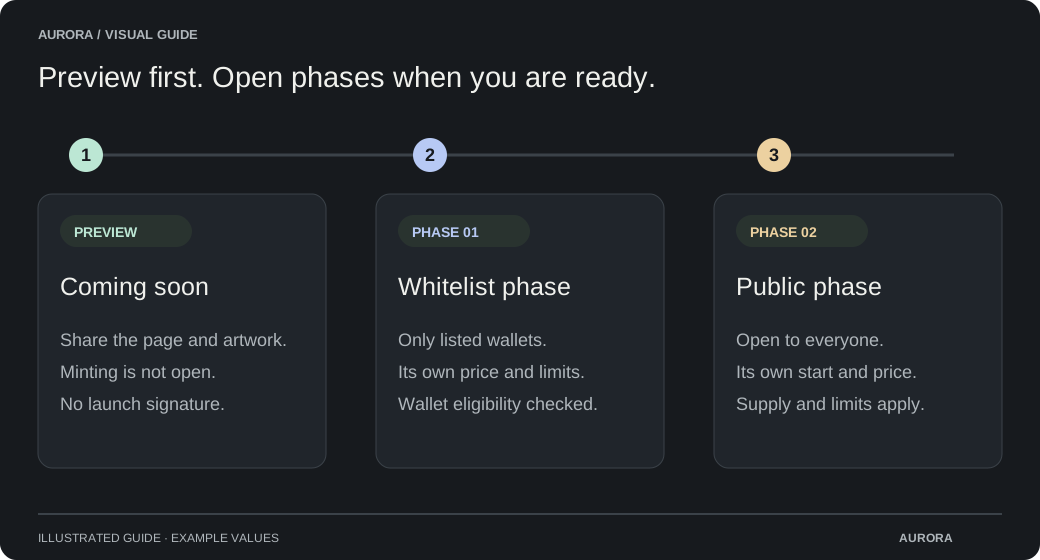
For each phase, choose a start, optional end, price, wallet limit and optional phase supply. Choose Everyone or a whitelist. Times in the interface use your local timezone.
Configure the reveal and protection
Choose immediate or supported delayed reveal and whether to require CAPTCHA. Review Trading settings separately before the first mint.
Save mint settings
Review the saved draft before approving its publication. Saving a draft alone does not open a public sale.
Reserve a later phase for wallets that missed the preceding phase
In the later phase, enable Exclude wallets that minted in followed by the preceding phase name. For example, enable this on Reserved for Stragglers after Public Free. Wallets that minted in Public Free cannot mint in Reserved for Stragglers; minting only in an earlier phase does not exclude them.
The rule applies to the immediately preceding phase of this release, so review the named phase after removing or rearranging phases. The preceding phase must end before this phase begins. Any successful mint by that paying wallet counts, even if its NFTs were later transferred or burned. This is a wallet restriction; it cannot identify one person using several wallets.
Aurora checks on-chain mint history before issuing the signed authorization required by supported contracts. No factory update is needed for those contracts. The option is unavailable on contracts that cannot enforce Aurora mint authorization. Save the settings, then Review and publish to apply them to a live release. Previously issued approvals can remain valid until they expire, for up to two minutes.
Set up a whitelist
Use Edit whitelist for the relevant phase. Add wallet addresses directly or use its CSV tools. Optional personal limits and prices can override the phase defaults; blank values follow the phase. Review the entries and choose Use whitelist. A list applies to its own phase.
Choose Import holders to use an NFT collection on a supported network. Enter its contract address and minimum NFTs held, then select all qualifying wallets, the top holders, or a random number of holders. Minimum holdings apply to all three options; ERC-1155 edition copies count toward holdings. Random selection gives each eligible wallet an equal chance.
Preview the selection, optionally set a mint allowance for each imported wallet, then choose Add selected wallets. Existing whitelist entries keep their limits and prices. The import uses indexed ownership data cached for up to five minutes and does not track later transfers. Importing holders does not need a wallet transaction; publishing whitelist changes still follows the mint publication flow.
Publish and confirm
Approve publishing the release, then choose Publish release. Follow the preparation and wallet steps shown in the same action area. Some collections need more than one transaction. Wait for each confirmation and use the displayed Continue action.
The wallet progress window stays open through multi-step setup and shows an estimated counter such as Step 2/4, completed steps and what is coming next. Keep it open while working through the approvals. The estimate can change as Aurora checks the remaining work.
Add another release
An additional release uses the same collection address. Previously minted supply still counts against the lifetime limit. The public page distinguishes earlier mints from the current release. Add more eligible artwork or edition copies, then prepare and publish the new release.
Publishing a new release includes wallet approvals to resume minting if the previous mint or reveal left it paused. The progress window includes these steps. Complete every approval; your saved phase dates still decide when collectors can mint. Saving a draft alone does not resume minting, and permanently closed collection minting cannot be reopened.
Fees and proceeds
Collectors may pay a platform fee in addition to your phase price and network gas. The displayed fee depends on current platform settings, the creator’s access and any release-specific override. Check the mint page’s current quote rather than assuming a fixed amount.
On collections with direct payouts, Mint proceeds payment defaults to Send to wallet after each mint. Choose Keep in contract for withdrawal if you prefer to collect proceeds later. Older collections use withdrawals. The Mint proceeds wallet receives artwork payments; the royalty recipient is separate. A pause, an end date and a withdrawal are separate actions.