 Aurora
Connect and verify your wallet
Understand connecting, signing in and approving a transaction before you start.
On this page
Connect to Aurora
Choose Connect wallet
Select your available wallet. On mobile, follow the wallet connection flow or open Aurora in your wallet’s browser if your wallet requires it.
Check the account
Confirm that the wallet address is the one you want to use. The creator account and the collection owner need to match for owner actions.
Verify when asked
For your private workspace, approve the Aurora sign-in message after checking the site address and message. Signing in does not require network gas.
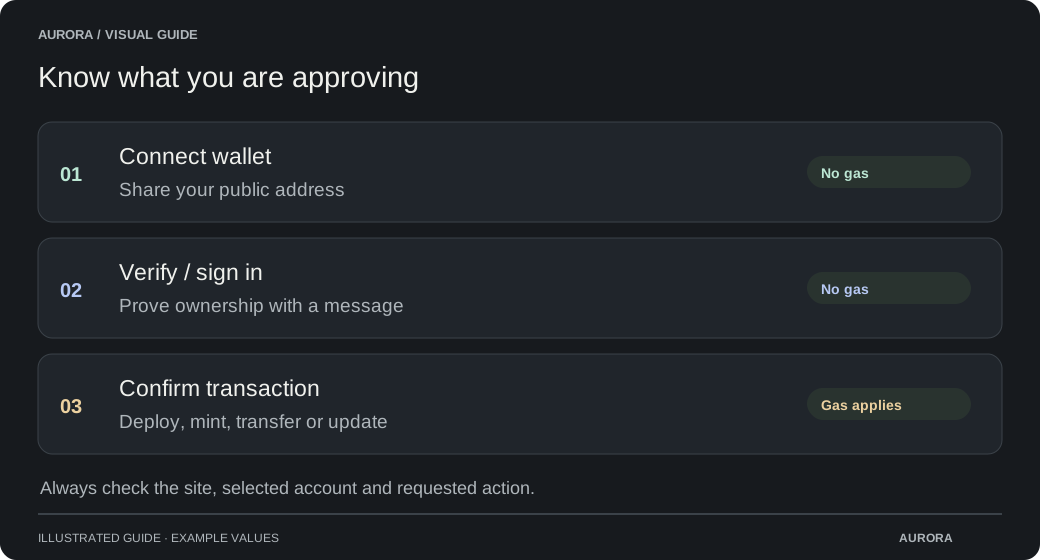
Three different wallet requests
| Request | What it does | Network gas |
|---|---|---|
| Connect | Lets Aurora see your selected public address. | No |
| Verify / sign in | Signs a message to prove you control that address. | No |
| Deploy, mint or update a contract | Submits an onchain transaction after your approval. | Yes |
Use the collection’s network
A collection belongs to the network chosen at deployment. Approve a network switch only after checking it matches the collection. You need that network’s native token for gas; a balance on another chain does not cover it.
Returning to a mint page
A mint page remembers the wallet you selected and tries to restore an already-authorized connection after a refresh. It does not open a new approval request automatically. If your wallet is locked, unavailable or no longer authorizes the site, use Connect wallet beside the mint controls.
Choosing Disconnect clears that remembered connection. Check the displayed address after switching accounts; whitelist eligibility and mint allowance belong to that address.
If the connection gets stuck
Check whether your wallet already has a pending request. Finish or reject that request, then return to Aurora. If you switched accounts, reconnect and verify the intended account. If a transaction was already sent, check its hash before starting a new one.