 Aurora
Mint your artwork to a wallet
Create NFTs from selected artwork without opening a public mint.
On this page
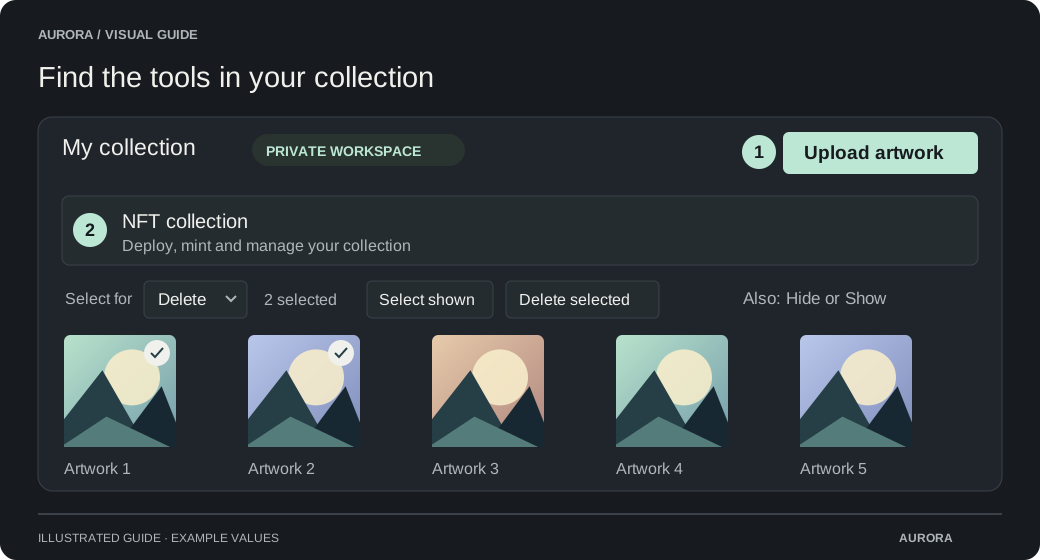
Choose what to mint
Open your deployed collection
Select eligible artwork in your workspace. Artwork reserved by a public release or another pending operation cannot be used for a conflicting mint.
Open Mint selected artwork
For unique NFTs, select unminted items. For editions, enter the number of copies; supported existing editions can have more copies minted within the collection limit.
Check the recipient
The default recipient is your connected wallet. Choose Mint to another wallet only if you want a different recipient, and verify that address.
Prepare and confirm
Approve publication to IPFS
Read the artwork publication checkbox. Published media and metadata become public and cannot be made private again.
Choose Prepare NFTs
Let Aurora prepare the files and transaction. A wallet transaction can mint up to 20 items or edition copies in this flow.
Review the wallet transaction
Check the network, collection, recipient and gas, then confirm. Wait for Aurora to record the successful mint.
After minting
The items appear under Minted artwork and in the shared collection gallery when sharing is enabled. Owner mints do not pay Aurora’s public-mint platform fee, but network gas still applies. If you chose manual trading activation, transfers remain locked until you enable trading.