 Aurora
Build a whitelist & import holders
Import CSV lists, repair invalid rows, or select collection holders by minimum holdings, ranking or random draw.
On this page
Open the whitelist for the right phase
Open your release settings
In your collection, open NFT collection → Public mint → Edit mint settings. Choose the phase that should have restricted access.
Choose whitelist access
Open Edit whitelist. Each phase has its own list; importing into one phase does not add the same wallets to another.
Choose how to add wallets
Use Add wallet for individual addresses, Import CSV for an existing list, or Import holders for an NFT collection. Review the rows, then choose Use whitelist and save the mint settings.
Import a CSV with optional columns
You can import a list without a header in wallet,amount,price order, including wallet-only or wallet,amount lists. The first wallet is kept. Invalid addresses stay in their own rows for correction.
Headers are optional and their names do not change the column order: wallet first, amount second, price third. A detected header is skipped. To set a price without an amount, leave the second column empty: wallet,,price.
Amounts are positive whole numbers. A blank amount follows the phase wallet limit. Prices use the network’s native currency, such as ETH; a blank or omitted price follows the phase price, while 0 explicitly makes the artwork price free for that wallet. Network gas and any platform fee still apply.
| Column order (header optional) | Example row | What happens |
|---|---|---|
| wallet | 0x1111111111111111111111111111111111111111 | Use the phase limit and price. |
| wallet,amount | 0x1111111111111111111111111111111111111111,2 | Allow 2 mints; use the phase price. |
| wallet,amount,price | 0x1111111111111111111111111111111111111111,,0.01 | Use the phase limit; price is 0.01 per NFT. |
| wallet,amount,price | 0x1111111111111111111111111111111111111111,2,0 | Allow 2 mints at a free artwork price. |
Find a wallet in a large list
Use Search wallets to enter a full address or any part of one. Matching ignores capital letters and searches the entire whitelist, including other pages. The count shows matches against the total list.
Edit or remove matching rows directly. Clearing the search shows the complete list again. Use whitelist and Export CSV always include the full list, not just search results. Show first issue clears the search and opens the first row that needs attention.
Fix marked rows without losing the import
Review the issue count
The editor scans every imported or manually added row. Invalid addresses, duplicate wallets, invalid amounts and invalid prices are marked beside the relevant field. Show first issue opens the page containing the first marked row.
Check unrecognized CSV data
Unknown columns, extra values and malformed rows stay visible for repair. Copy any needed values into the wallet, limit or price fields, then choose Clear extra data. Clearing this data discards those extra values, so check them first.
Correct or remove the row
Edit the marked values or use the row’s remove button. Errors are rechecked as you edit. Duplicate addresses are not automatically combined, so decide which allowance and price to keep.
Apply the repaired list
Use whitelist becomes available when no marked issues remain. Export CSV creates a standard wallet,amount,price file from valid rows.
Import holders from an NFT collection
Choose Import holders
Select the source collection’s network and paste its contract address. The source can be a different collection from the one you are launching. Only configured, supported networks appear.
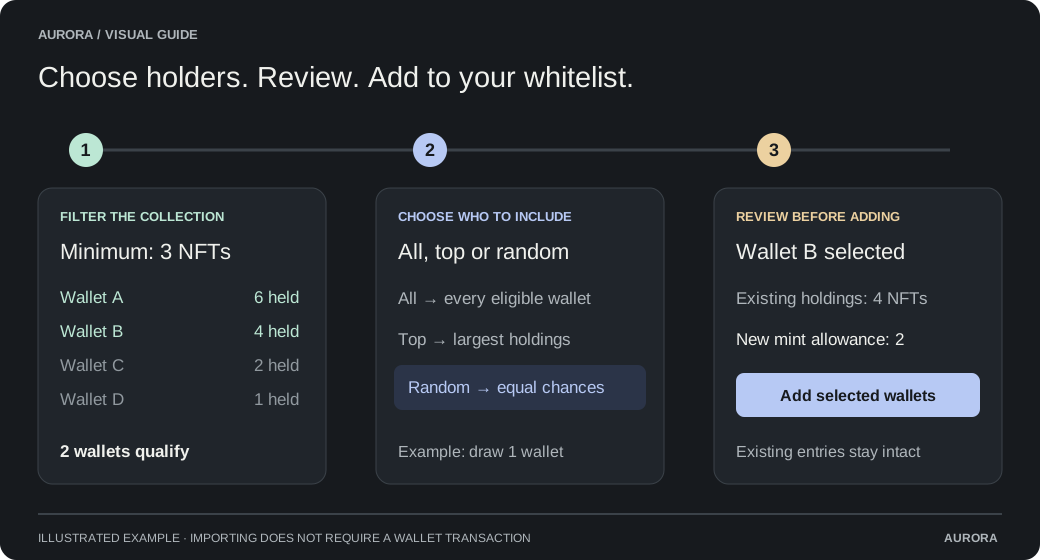
Set Minimum NFTs held
Enter how many NFTs a wallet must hold to qualify. For ERC-721 this counts NFTs; for ERC-1155 it counts edition copies across the collection. This filter is applied before any top or random selection.
Choose the selection method
Select all qualifying holders, top holders by holdings, or random qualifying holders. For top or random, enter the number of wallets you want.
Preview holders
Wait for the complete holder list to load. The preview shows the total holders, how many qualify, and how many are selected. It displays up to eight sample wallets with their holdings. You can cancel a slow lookup without changing your whitelist.
Set an optional mint allowance
Leave Mint allowance per imported wallet empty to use the phase limit, or enter the number each imported wallet may mint. Existing holdings are not automatically copied into this allowance. Imported prices follow the phase price.
Add selected wallets
The selection is added to your current rows. Already-listed wallets keep their existing allowance and price and are counted as skipped. Review the full list, then choose Use whitelist.
Choose all, top or random holders
If fewer wallets qualify than requested, the preview includes that smaller number. Draw again makes a new random selection; it does not add the previous draw to your whitelist. Changing the collection or selection settings clears the old preview.
For example, a minimum holding of 3 and a mint allowance of 2 means each selected wallet must have qualified with at least 3 existing NFTs, but receives permission to mint 2 new NFTs in this phase.
| Selection | How it works | Example with minimum 3 NFTs |
|---|---|---|
| All qualifying holders | Add every wallet meeting the minimum. | Include every wallet holding at least 3 NFTs. |
| Top holders by holdings | Largest holdings first; ties are ordered by wallet address. | Take the 100 largest holders from wallets holding at least 3 NFTs. |
| Random qualifying holders | Each eligible wallet has an equal chance; no wallet is drawn twice. | Draw 100 wallets from holders of at least 3 NFTs. Holding more does not give extra chances. |
Understand the ownership snapshot and limits
Imports use indexed ownership data, which may lag recent transfers. The preview shows when Aurora fetched the data; a complete holder list is cached for up to five minutes. This is a one-time import, not a live token gate. Later sales or transfers do not automatically remove a wallet or add a new owner.
Zero and standard dead burn addresses are excluded. Other contract wallets can appear in a holder list. Review the selected addresses if your project has additional eligibility rules.
Each phase supports up to 50,000 wallets. Phases have independent lists, with no separate wallet-count limit across the release. This is Aurora's supported application limit, tested for list processing and mint checks, rather than a maximum built into the collection contract.
The contract stores a compact fingerprint of the whitelist and verifies proof of each wallet’s allowance. Aurora prepares and reuses these proofs in the background so larger lists do not block other mint checks. The supported limit keeps storage and preparation work bounded.
Raise the minimum or use top or random selection if too many holders qualify. Collections above 100,000 holders, or lists too large for the provider response limits, may need a CSV import instead.
If holder imports are not configured or a network is unavailable, use a CSV or contact the administrator. A failed or cancelled lookup adds no wallets. Retry later if the data provider is unavailable; the importer does not select from an incomplete result.