 Aurora
Upload artwork & add metadata
Upload and organize artwork, edit metadata, and delete, hide or show selected items.
On this page
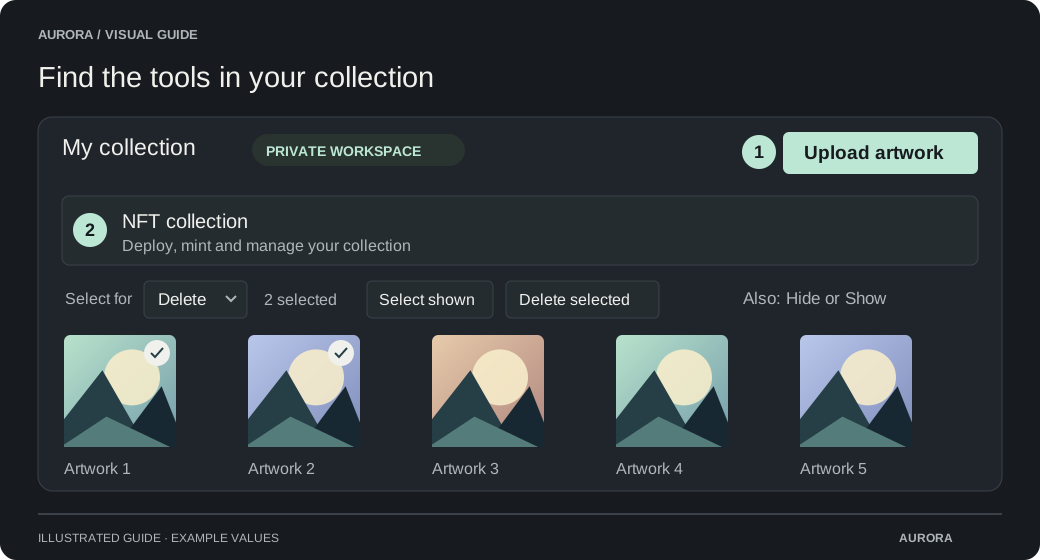
Create a home for your collection
Create a collection
Open Collectibles Studio, choose New collection and enter a name you can recognize.
Choose Upload artwork
Add individual files, a folder or a ZIP. Artwork inside a folder or ZIP goes into the current collection; nested folders do not create extra collections.
Review your uploads
Images and GIFs can be up to 10 MB each. Supported MP4 and WebM videos can be up to 50 MB each. Check the upload result and your remaining collection allowance.
Add names, descriptions and traits
Use the pencil on an artwork to edit one item. Use Metadata & CSV to work across the collection. To edit a selection, choose Metadata in Select for, select the artwork and choose Edit selected metadata. A trait is a named attribute such as Color: Blue or Series: Summer.
Text traits describe categories. Numeric traits store actual numbers. Both can be saved and shown, but rarity rankings require text traits with distinct names. Editable minted artwork is saved as a draft; use Publish NFT updates to publish its new metadata before expecting public traits or ranks to change.
Edit traits in a simple CSV
Each trait has its own column at the end of the file. There is no JSON traits cell. The first six columns are image_id, title, description, status, media_ipfs and metadata_ipfs. After those, use trait names such as Color and Value, with plain values such as Blue and Under 3.
This metadata CSV needs its header row so Aurora knows the trait names. The example below uses placeholder image IDs; start from your own export to get IDs that match your artwork. The exported format and example template use the same layout.
Rarity requirements and supported traits
image_id,title,description,status,media_ipfs,metadata_ipfs,Color,Value
aaaaaaaaaaaaaaaaaaaaaaaaaaaaaaaa,1,,editable,,,Blue,Under 3
bbbbbbbbbbbbbbbbbbbbbbbbbbbbbbbb,2,,editable,,,Red,Over 3Export your selection
Open Metadata & CSV and choose Download CSV. Keep image_id unchanged. The download includes all artwork loaded into the editor, including rows on its other pages.
Edit cells and append traits
Change title, description and trait values. To add a Background trait, append ,Background to the header and ,Sunset to the relevant artwork rows, or add a column in your spreadsheet. Keep blank cells for artwork without that trait. Status and IPFS columns are reference information and are ignored on import.
Check removals carefully
Each imported row replaces that artwork’s traits. A blank cell removes that trait from the artwork. Removing an entire trait column removes it from every imported artwork. An empty description clears the description. Artwork omitted from the CSV is not changed.
Import, review and save
Save a UTF-8 CSV, choose Import CSV and review the changed rows before saving. Up to 25,000 items and 128 MB are supported. Aurora validates the entire file before loading edits. Unchanged locked rows are skipped; attempted changes to locked artwork are rejected. Large saves run in batches, and remaining edits stay available to retry if a batch fails.
| Cell or header | How it works |
|---|---|
| Color / Blue | An ordinary trait column stores text. A value such as 007 remains text when imported directly; check that your spreadsheet has not converted it to 7. |
| number:Edition / 7 | The number: prefix stores a true numeric trait. Keep it when editing an export. Numeric traits are shown, but prevent rarity ranking for the collection. |
| trait:title / Summer | The trait: prefix allows a trait named like a standard column. Keep prefixes from the export to preserve trait names. |
| Commas, quotes and line breaks | CSV quotes are added only where required, including spreadsheet protection. A value such as Blue, green must be written as "Blue, green" when editing the file as text. Spreadsheet apps handle CSV escaping when saving. |
| An explicitly quoted empty cell: "" | Preserves an empty text trait. A completely blank cell removes the trait. |
Delete, hide or show selected artwork
Aurora checks the entire selection again before applying the action. If an item is missing or has become protected, the selection is rejected without partially applying it. Read the error and refresh the collection if needed before trying again.
Choose an action in Select for
Above the artwork grid, choose Delete, Hide or Show. Changing this option clears the previous selection. Only artwork eligible for the chosen action can be selected.
Select the artwork
Click individual artwork cards or use Select shown for the current page. If the results span several pages, Select all available selects eligible artwork across those results. Search first to narrow the results, check the selected count, and use Clear selection to start again.
Apply the selected action
Choose Delete selected, Hide selected or Show selected. Deletion opens a confirmation showing the item count and collection name. Hide and Show apply directly, and a completion message confirms the result.
| Action | What changes |
|---|---|
| Delete | Permanently removes selected unminted, unreserved artwork from the collection and its public gallery. This cannot be undone. |
| Hide | Keeps selected artwork in your workspace but removes it from the public gallery. Only eligible visible artwork can be selected. |
| Show | Makes selected hidden artwork available in the public gallery when sharing is enabled. Only eligible hidden artwork can be selected. |
What Artwork locked means
Artwork locked appears on both reserved and minted artwork cards. The small chain icon beside the artwork name separately identifies minted items. Hover over the lock label for the reason it is protected.
A reservation protects artwork used by a pending mint or release. Complete or safely cancel the related action before changing it. Minted artwork cannot be deleted, even after the NFT is burned.
The lock does not always prevent metadata edits. Supported editable collections can update minted artwork through the metadata editor and publish the changes onchain. The lock also does not describe trading status; transfer restrictions are controlled by the collection’s trading settings.
Understand what is public
Your collection workspace can show every upload. A shared gallery attached to a deployed collection shows minted items only; unrevealed items use their placeholder. Uploading an original does not itself put it on IPFS.