 Aurora
Find your way around Aurora
A quick route to creating a collection, collecting a mint or managing your wallets.
On this page
What would you like to do?
Create your own NFTs
Get Creator access from your Profile, open Collectibles Studio and choose New collection. Upload your artwork, then open its NFT collection panel to deploy a contract.
Create artwork from layers
With Premium, open ArtLab from Collectibles Studio. Upload your backgrounds, characters and details, set their trait weights, then follow the wizard to render a collection. Start with the dedicated ArtLab walkthrough below.
Mint from another creator
Open Mints, choose a collection and read its schedule. You can browse without signing in; connect your wallet on the mint page when you are ready to mint.
Manage NFTs and wallets
Premium adds the NFT browser, linked wallets, galleries, GridMaker, transfers and email preferences. Open your Profile to see your current access.
Review wallet permissions
Use the security workspace to scan the connected wallet on a supported network and review its approvals. A 24-hour pass, eligible holder access or Premium may provide access.
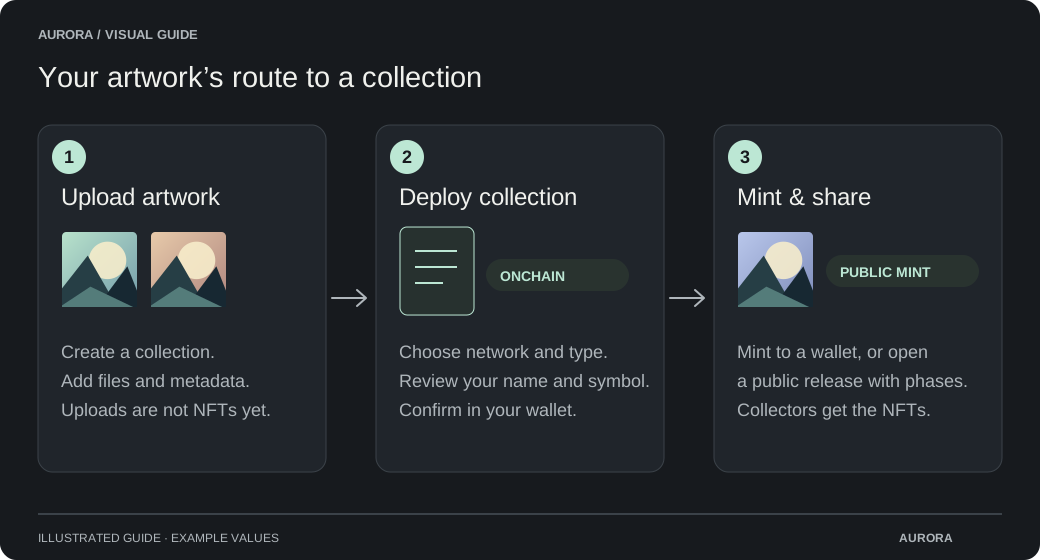
Artwork, collection, then mint
An artwork upload is a file in your workspace. Deploying a collection creates its contract and permanent network address. Minting creates the NFTs. These are separate actions, so uploading a file or deploying a contract does not automatically sell or mint your art.
Build a collection with ArtLab
The ArtLab topic takes you from preparing transparent layer files through links, rarity weights, previews and rendering. It also explains re-rendering before minting and how to fix common problems.
Help while you work
Small help icons explain individual collection settings. The guides here cover the complete steps. When a button is unavailable, check the message beside it before reconnecting or starting again.