 Aurora
Build your Albums
Organize collecting targets, follow templates and share selected progress.
On this page
Make your own checklist
Albums in the site header opens the public browser. When signed in, you also see your own private albums, labelled Only you. Other visitors cannot see them. Use My albums to filter your albums, or Manage my albums to open your workspace.
Sign in and choose Workspace → Albums → New album. Choose an NFT folder, Art album, Card album or Creator collection. Art albums accept ordinary ERC-721 and ERC-1155 NFTs from your saved holdings. Card albums use registered card collections and can include collecting targets you do not own yet. Add NFTs individually from My NFTs, or use View selection → Add to album for several at once.
A required slot normally needs one copy; change its quantity if you need more. Bonus cards do not count toward required completion. Decorative placements do not create another collecting requirement. Search and ownership filters help you find missing cards.
Understand current progress
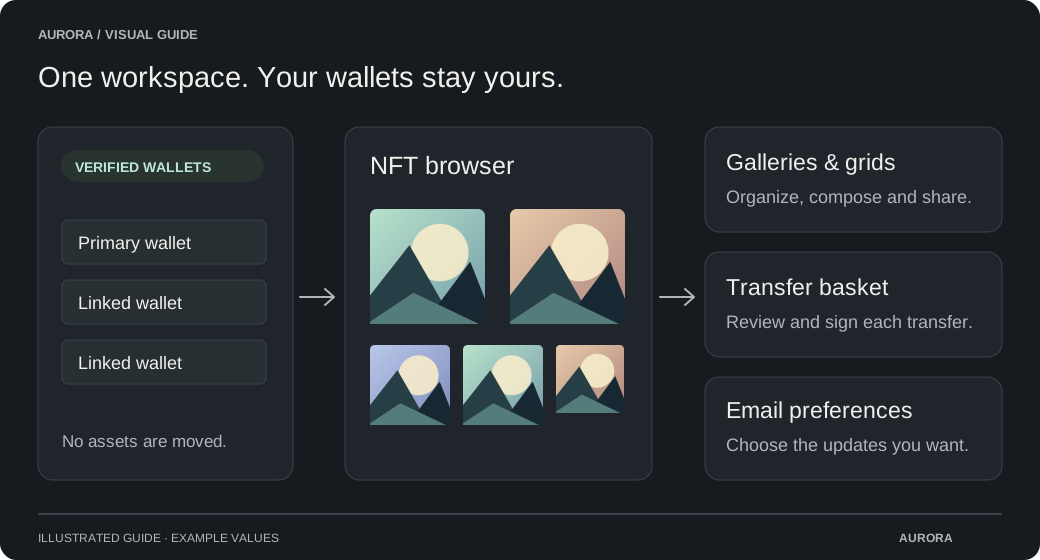
Choose your signed-in wallet or verified linked wallets. Required copies of the same card add up within each page. Across pages, only the highest page quantity is needed, so one card can appear on several trait pages. Albums do not reserve assets.
Completion requires every required quantity and a current known balance for every required card. Extra duplicates do not substitute for missing types. Transfers, mints and completed swaps refresh affected progress. Unknown or stale balances mean progress is incomplete, not zero. A completed album can become incomplete after a transfer.
Follow a published template
Official templates come from a creator authorized for every included collection. Community templates are labelled separately. Following a template creates your own album with its selected checklist version, notes, layout and visibility.
New template versions do not silently replace your checklist. Review changed requirements before upgrading. A creator can stop publishing a template without deleting albums people already made from it.