 Aurora
Set up email alerts & reports
Verify an email address and choose the updates you want from Aurora.
On this page
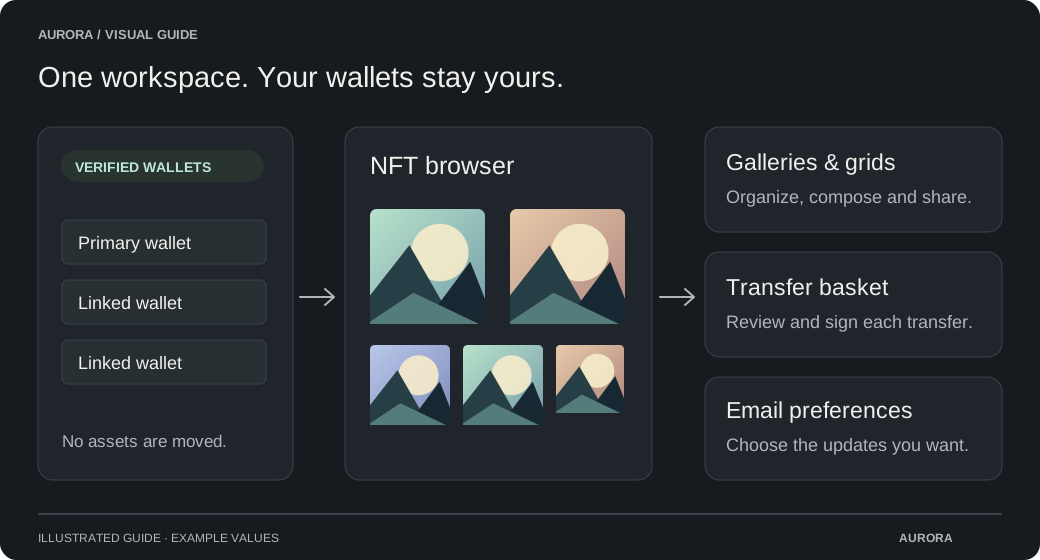
Choose your email preferences
Open Profile → Email preferences
Use the Premium profile whose wallets you want included.
Verify your email
Enter your address and complete the confirmation flow. An unverified address cannot receive enabled notifications.
Choose your updates
Select the available risk alerts, Premium expiry reminders and daily activity reports you want. Review the timing controls shown in your profile.
What to expect
Reports use the activity and network coverage available to Aurora. They can be delayed and may not include every event. Alerts are information for you to review; they do not block a transaction or prevent losses.
Change or stop emails
Return to Email preferences to change the selected notifications. You can also use the unsubscribe option provided in an email. Submitting a Creator application does not itself subscribe you to notifications.