 Aurora
Withdraw mint funds
Collect your mint proceeds through Aurora or withdraw manually with BaseScan on Base.
On this page
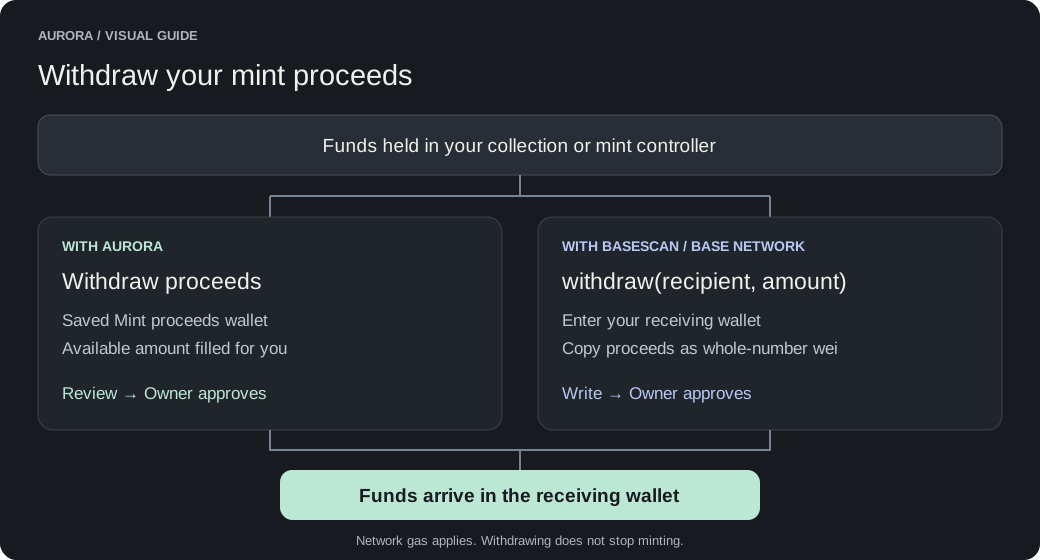
Where your mint funds are held
This guide applies to Keep in contract for withdrawal and to older collections that only support withdrawals. With Send to wallet after each mint, the artwork price is paid to your chosen wallet automatically; earlier retained proceeds still need withdrawal. Aurora’s platform fee is collected separately, and network gas is not part of your proceeds.
The contract owner authorizes withdrawals. The recipient is the wallet receiving the payment; it does not need to be the owner. Your royalty recipient is a separate setting for secondary sales.
You can withdraw while minting is active or after it ends. Withdrawal does not pause minting, end a release or transfer ownership. Proceeds are tracked for the whole mint contract and may include multiple releases, not only the release currently open in the editor.
Withdraw through Aurora
Open your collection’s public mint settings
Open Collectibles Studio, choose your collection, and expand its NFT collection panel. Select the correct network and open the public mint release you want to manage.
Check your wallet and payout destination
Connect the wallet that owns the mint contract. Check the release’s saved Mint proceeds wallet: Aurora uses this address for the withdrawal, not the royalty recipient or whichever wallet happens to be connected.
Choose Withdraw proceeds
For an active or ended release, use Withdraw proceeds in the release controls. Aurora reads the available proceeds and prepares a withdrawal for that amount to the saved proceeds wallet.
Review and confirm in your wallet
Check the network, receiving address and amount in the review. Approve the withdrawal transaction and wait for confirmation. You need native currency in the owner wallet to pay network gas; you do not send an additional mint payment.
Check the receiving wallet
After confirmation, check its native-currency balance and the transaction on the network explorer. If more mints arrived after the amount was prepared, those newer proceeds remain available for another withdrawal.
BaseScan: identify the contract holding the funds
BaseScan is for the Base network. For another network, use that network’s explorer instead. Use the Mint contract address shown in the mint review or the destination of a successful mint’s actual contract call. A smart wallet can wrap a transaction, so its outer destination alone may not identify the mint contract.
With built-in minting, use the collection address. With a separate mint controller, use the controller address. Do not use the factory or the shared implementation address. The collection’s owner may itself be a controller; check owner on the contract that actually holds the proceeds.
Open the address on basescan.org
Choose Contract, then Read Contract. If the collection is a proxy and its functions are exposed under Read as Proxy, use that tab while staying on the collection’s address.
Read owner and proceeds
owner identifies who can authorize the withdrawal. proceeds returns the available amount as an integer in wei. Copy that integer to withdraw all currently available proceeds. Use proceeds rather than the address’s overall ETH balance.
BaseScan: submit the withdrawal
Connect the authorized owner
On the same address, choose Write Contract or Write as Proxy, then Connect to Web3. Connect the owner wallet and select Base. If owner is a multisig or another contract, the call must be made through that owner’s transaction flow; connecting an individual signer is not enough.
Find withdraw(address recipient, uint256 amount)
Enter your receiving wallet in recipient. Enter the raw integer from proceeds in amount to withdraw the full available amount, or a smaller positive integer for a partial withdrawal. Check the entire recipient address: BaseScan does not fill Aurora’s saved proceeds wallet for you.
Write and approve
Click Write and review the transaction in your wallet. Attach no ETH payment: this function is nonpayable. Approve only the withdrawal transaction and its network gas, then wait for a successful receipt.
Verify the result
Check the receiving wallet and the transaction’s internal transfers or ProceedsWithdrawn event. Read proceeds again to see what remains. A failed transaction does not withdraw the funds, although a mined failure can still consume gas.
| Example ETH amount | amount in wei |
|---|---|
| 0.001 ETH | 1000000000000000 |
| 0.01 ETH | 10000000000000000 |
| 1 ETH | 1000000000000000000 |
If withdrawal fails
- Wrong owner: compare the connected wallet with owner on the mint contract. The payout recipient and royalty recipient do not automatically have withdrawal authority.
- No proceeds: direct payouts may already have sent the artwork price to your wallet. A free mint has no creator revenue, funds may already have been withdrawn, or you may be viewing the wrong contract or network.
- Amount changed: refresh proceeds after another withdrawal and prepare a new amount. Never enter a decimal ETH amount in the uint256 field.
- Not enough gas: the owner needs ETH on Base even when the mint contract itself holds ETH.
- Recipient rejected payment: a receiving contract must accept native ETH. The withdrawal reverts and proceeds stay in the mint contract if the transfer fails.
- Transaction already submitted: check the existing transaction before submitting another. Confirmation can take time; a pending screen alone does not mean it failed.