 Aurora
Review & revoke wallet approvals
Find permissions granted by your wallet and remove the ones you no longer want.
On this page
Scan the right wallet and network
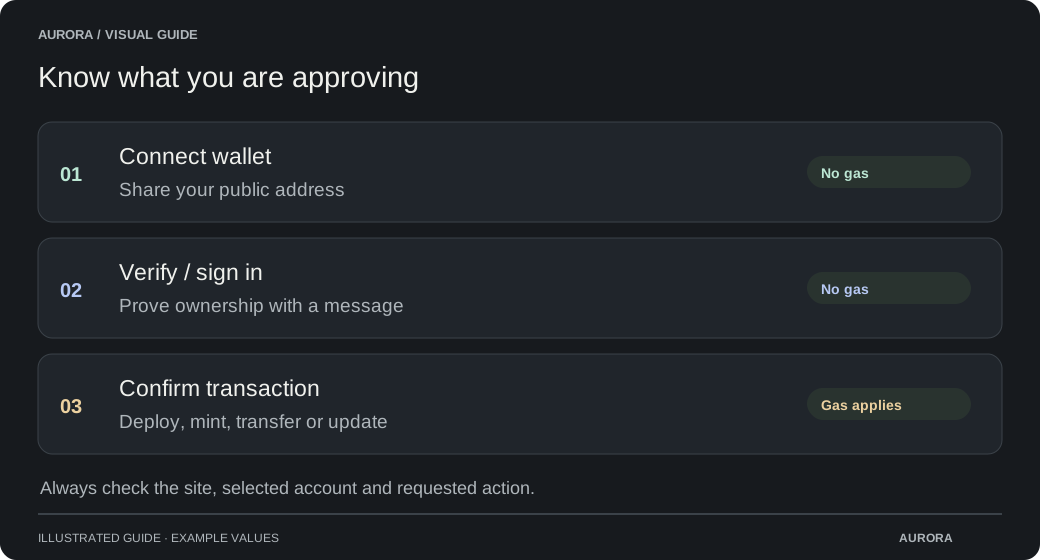
Connect and verify your wallet
Use the wallet whose permissions you want to manage, or a verified linked wallet supported by your Premium profile.
Open the security workspace
Choose the network and start a scan with the required access. A network has its own permissions, even if your wallet address is the same on several chains.
Review the results
Check each token or NFT approval, its spender and the permission granted. Available labels, warnings and contract reviews provide context, not a guarantee of safety.
Remove an unwanted permission
Choose the permission you want to remove, review the proposed action and confirm it in your wallet. If you queue several revocations, follow each wallet request. Network gas applies. Check that the transaction succeeds and the refreshed permission is removed.
Understand the scan’s scope
Provider history and supported permission types affect what Aurora can find. Review supported delegation controls separately where shown. Disconnecting a website in your wallet is not the same action as revoking an onchain approval.